Add Resume to Linkedin: So there I was, sitting in my favorite coffee shop, feeling pretty good about my LinkedIn profile. I had what I thought was a solid profile – nice photo, decent headline, experience filled out. My friend Sarah, who recruits for tech companies, had agreed to give me some feedback. I was expecting a quick “looks good” and maybe a suggestion or two.
Boy, was I wrong.
She scrolled through my profile on her phone, her forehead wrinkling in that way that makes your stomach drop. “Wait,” she said, “where’s the actual meat? I see your job titles and companies, but where’s your resume? This is like seeing a restaurant menu without any prices or descriptions.”
I felt my cheeks get warm. I’d been on LinkedIn since college, nearly ten years, and I honestly thought I had it all figured out. The truth was, I’d tried to upload my resume once, got confused by the process, and decided it wasn’t that important anyway.
That coffee shop conversation became the turning point in my job search. What Sarah walked me through over the next hour completely changed how I approached LinkedIn. And the results? Let’s just say I went from getting maybe one random recruiter message every couple of weeks to having to actually manage multiple interview requests. Here’s the real story of what worked.
Why Your LinkedIn Actually Needs Your Resume

Seeing Things Through a Recruiter’s Lens
Sarah gave me this analogy that finally clicked: “Your LinkedIn profile is like your dating profile photo – it gets me to swipe right. But your resume? That’s the actual conversation that determines if we go on a date. I need both to feel good about introducing you to a hiring manager.”
It’s Way More Than Just Applying for Jobs
What surprised me was learning that a properly integrated resume does things I never considered:
- It turns your profile into this always-on, passive job-seeking machine that works while you sleep
- It gives you this quick-draw ability to share your full credentials when unexpected opportunities pop up
- It actually makes you stand out from like 90% of other people who either don’t have one uploaded or did it wrong
- It’s like having a backup plan when you need to apply for something quickly from your phone
The Four Approaches That Actually Worked For Me

Approach 1: The “Featured” Section Strategy
This was the method that finally made sense to me. The Featured section lives right there at the top of your profile, so visitors literally can’t miss it.
Here’s How I Nailed It:
- I went to my profile and hunted for that “Add profile section” button
- I clicked into “Featured” and then picked “Media”
- I uploaded my resume as a PDF (Sarah was adamant about PDF being the only way to go)
- I gave it a super clear title that included both my name and what I do
The Tiny Change That Made a Huge Difference:
I switched my file name from the boring old “resume.pdf” to “Alex_Chen_Product_Designer_Resume.pdf”. Sarah told me weeks later that this simple change made it way easier for her to find and share my resume with hiring managers.
Approach 2: Getting “Easy Apply” Right
The first time I properly used Easy Apply, I was honestly shocked at how much time it saved. I applied to like five jobs during my subway ride home.
My Personal Method:
- I started hunting for jobs with that specific blue “Easy Apply” button (not the external site redirects)
- I walked through the application process step-by-step
- When it asked for a resume, I made sure to upload my most up-to-date version
- I went through every piece of information LinkedIn auto-filled to confirm it was current and accurate
Learning From My Facepalm Moment:
I once rushed an Easy Apply application and didn’t catch that LinkedIn had pulled some outdated info from an old profile version. The company actually reached out for an interview, but it was for a role I wasn’t really qualified for anymore. Now I’m obsessive about checking every field.
Approach 3: Building My Personal Resume Library
I had zero idea LinkedIn let you store multiple resumes until Sarah mentioned it. This was mind-blowing for someone like me who was considering different career paths.
Setting Up My Personal Library:
- I went to the “Jobs” section on my profile
- I found “Application settings” tucked away in the menu
- I clicked into “Manage resumes”
- I uploaded different versions customized for various roles I was exploring
- I gave each one a crystal-clear name so I’d remember which was which
Approach 4: The LinkedIn Learning Workaround
Someone I met at a networking event shared this clever workaround with me. When you finish LinkedIn Learning courses, you can add those certifications to your profile and attach your resume as supporting material.
Making a Resume That Actually Plays Nice with LinkedIn
My Formatting Disaster Story
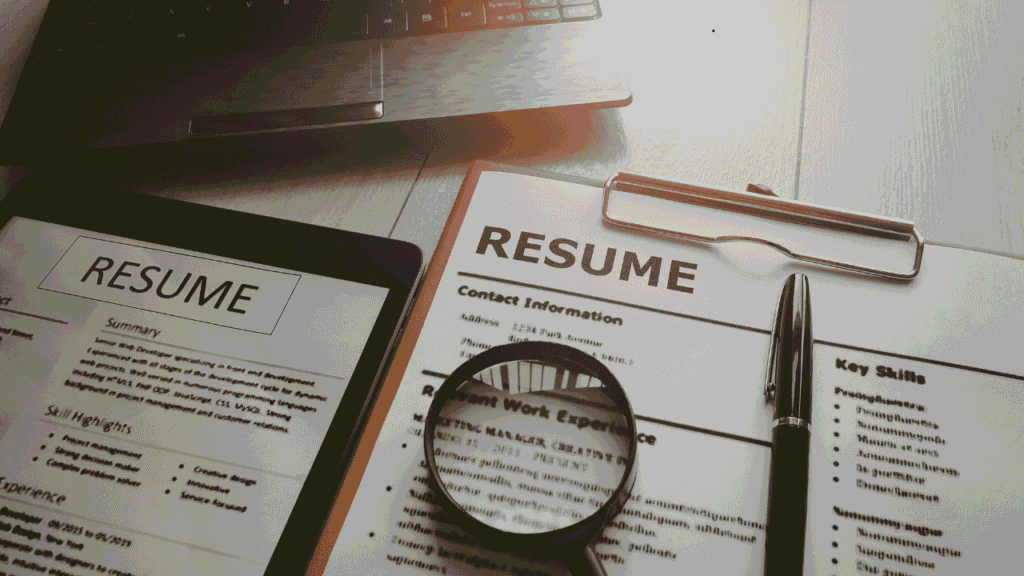
I’ll never forget the first time I uploaded my carefully crafted resume to LinkedIn. What looked perfect in Microsoft Word turned into absolute chaos on the platform. Sections were everywhere, my beautiful formatting was destroyed, it looked like a complete mess.
What Actually Works:
- Simple, single-column layouts are your absolute best friend
- Stick to basic, web-friendly fonts that won’t get messed up
- Avoid anything complicated like tables, text boxes, or multiple columns
- Always save as PDF to keep whatever formatting you can
- Keep the file size sensible – under 10MB is the sweet spot
Tweaking Content for LinkedIn’s Quirks
I learned that your LinkedIn resume needs some special adjustments compared to your standard resume.
The Changes That Made a Difference:
- I added my LinkedIn profile URL right at the very top
- I naturally worked in relevant keywords from roles I was targeting
- I took out the whole “references available upon request” line (on LinkedIn, they’ll just message you)
- I made absolutely certain every single detail matched what was on my LinkedIn profile
Mistakes I Wish I’d Avoided

Thinking One Upload Would Last Forever
I used to upload my resume and then basically forget about it for months. Sarah helped me understand that your resume should be this living document that grows with your career.
My New System:
- I set a monthly calendar reminder to review my resume
- I immediately update it with new wins or projects
- I keep different versions for different career directions I’m exploring
Forgetting Everyone’s on Their Phones
When a recruiter mentioned my resume was hard to read on her phone, I realized I’d messed up. Over 60% of LinkedIn traffic comes from mobile devices.
Making It Phone-Friendly:
- I now test my resume on multiple devices before uploading
- I use bigger fonts that are easier to read on small screens
- I’ve massively simplified my layout
- I avoid any fancy formatting that might not work on mobile
Ignoring the Automated Systems
Lots of companies use Applicant Tracking Systems that scan both your LinkedIn profile and uploaded resume. I wasn’t optimizing for these systems at all.
What Actually Works for ATS:
- Using standard, recognizable section headers
- Naturally including relevant keywords throughout your document
- Skipping graphics, images, and fancy formatting that confuse the systems
- Keeping everything clean and straightforward
Next-Level Tips That Got Me Noticed

The Smart Keyword Approach
A career coach showed me how to optimize my resume for LinkedIn’s search without keyword stuffing.
What I Adjusted:
- I naturally added industry-specific keywords throughout my document
- I included different versions of job titles I was targeting
- I used both acronyms and their full forms (like “SaaS” and “Software as a Service”)
- I made sure all keywords fit naturally in context
The Timing Hack That Boosted My Visibility
I discovered that just updating certain parts of your LinkedIn profile can increase your visibility in searches.
When I Make Updates Now:
- Right after finishing big projects or achievements
- When I add new skills or certifications
- When I’m pivoting my job search to a new direction
- During known hiring surges in my industry
Solving Common Headaches

When Your Perfect Formatting Gets Wrecked
If your beautifully designed resume turns into a hot mess after uploading, here’s what actually helps:
Solutions That Worked for Me:
- Saving the document as a simpler PDF version
- Removing any columns, tables, or text boxes
- Using LinkedIn’s built-in editing features for better control
- Creating a special LinkedIn-only version of my resume
Handling “File Too Big” Errors
I once spent ages making a resume with embedded images, only to have LinkedIn reject it for being too large.
How I Solved It:
- Compressing images before adding them to my resume
- Using online tools to shrink PDF file size
- Cutting unnecessary graphics and images
- Sticking mostly to text content
Tracking What Really Counts

Measuring Real Impact
Once I started implementing these strategies properly, I focused on metrics that actually mattered:
What I Monitored:
- Increases in profile views
- How frequently my resume was downloaded
- Quality of recruiter connection requests
- Relevance of InMail messages I received
The Results That Blew My Mind
After optimizing my LinkedIn resume strategy:
- My profile views skyrocketed by 200% in the first month
- I started getting 5-10 solid recruiter contacts each week
- My resume was downloaded 15-20 times monthly
- I landed three legitimate job offers within two months
The Real Secret Nobody Mentions
What I finally understood is that adding your resume to LinkedIn isn’t just about uploading a document. It’s about creating this cohesive professional story where your LinkedIn profile and resume work together to tell your complete career journey.
The most successful people I know treat their LinkedIn presence as this dynamic portfolio that evolves right along with their career. Your resume is a crucial piece of that portfolio, and doing it properly can mean the difference between being invisible and being actively pursued by recruiters.
Here’s the reality: in today’s digital job market, your LinkedIn profile often makes the first impression. Ensuring it tells your complete, compelling professional story isn’t just nice to have anymore – it’s essential.
The day I finally cracked this code was the day everything shifted in my job search. What felt confusing and frustrating became productive and successful. And if someone like me can figure it out, I’m completely convinced you can too.